
The recommended boot flow for a device is described on this page and illustrated in Figure 1:
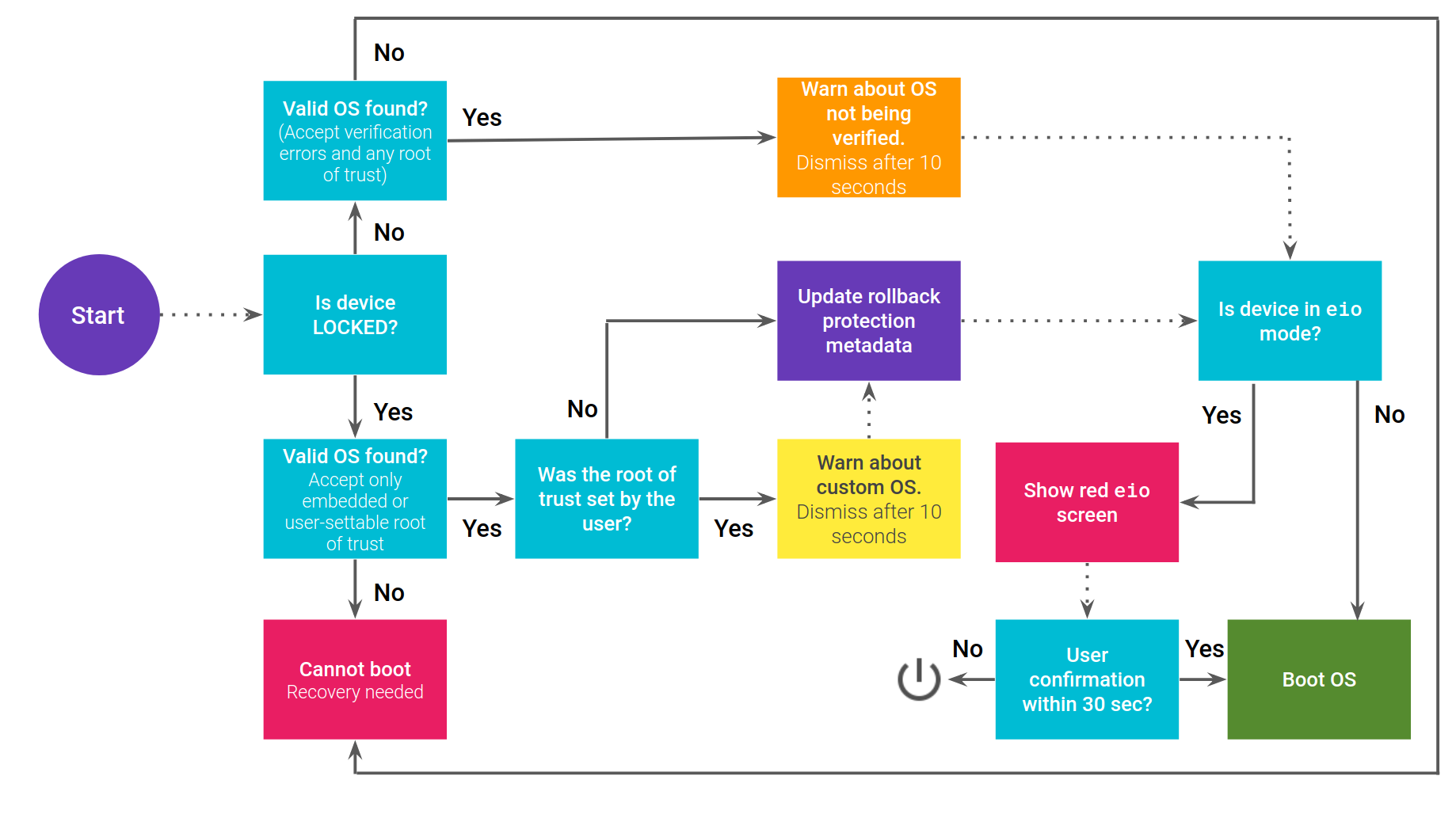
Figure 1. Verified Boot flow.
Flow for A/B devices
If the device is using A/B, the boot flow is slightly different. The slot to
boot must first be marked as SUCCESSFUL using the Boot Control HAL before updating the
rollback protection metadata.
If there's a platform update that fails (isn't marked
SUCCESSFUL), the A/B stack falls back to the other slot,
which still has the previous version of Android in it. However, if
the rollback protection metadata had been set, the previous version can't
boot because of rollback protection.
Communicate Verified Boot state to users
After determining the boot state of a device, communicate that state to the user. If the device doesn't have any issues, then proceed without displaying anything. Verified Boot issues fall into these categories:
- YELLOW: Warning screen for LOCKED devices with custom root of trust set
- ORANGE: Warning screen for UNLOCKED devices
- RED (
eio): Warning screen for dm-verity corruption - RED (no os found): No valid OS found
LOCKED devices with custom root of trust
Show a YELLOW screen on every boot if the device is LOCKED, a custom root of trust has been set, and the image was signed with this custom root of trust. The YELLOW screen is dismissed after ten seconds and the device continues booting. If the user presses the power button, the *Press power button to pause* text changes to *Press power button to continue* and the screen is never dismissed (the device might dim or turn off the screen to protect against burn-in). If pressed again, the screen is dismissed and the phone continues booting.
For the hex-number, use the first eight digits of the sha256 of
the libavb representation of the public key used for verification, for example
d14a028c.
Suggested text:
Your device is loading a different operating system.
Visit this link on another device:
g.co/ABH
OS fingerprint: hex-number
Press power button to pause
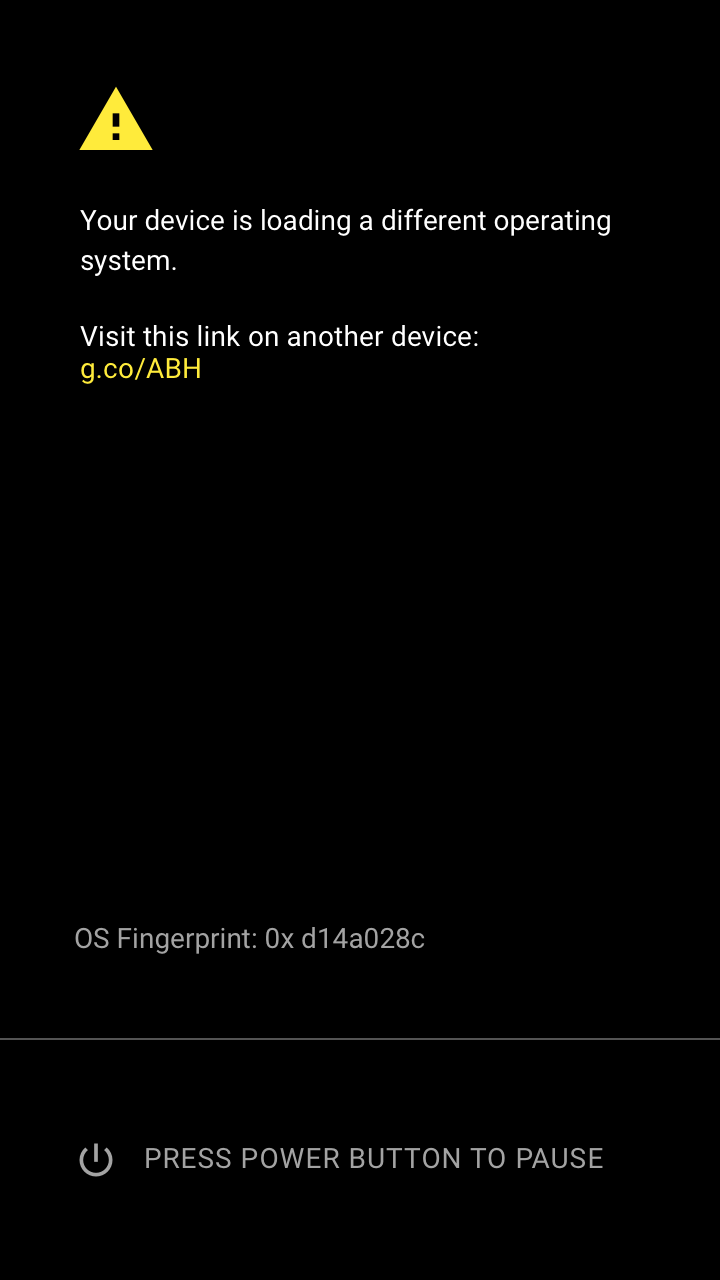
Figure 2. Example of a YELLOW screen.
UNLOCKED devices
Show an ORANGE screen on every boot if the device is UNLOCKED. The ORANGE screen is dismissed after ten seconds and the device continues booting. If the user presses the power button, *Press power button to pause* text changes to *Press power button to continue* and the screen is never dismissed (the device might dim and/or turn off the screen if needed to protect against burn-in or similar). If pressed again, the screen is dismissed and the phone continues booting.
For the hex-number, use the first eight digits of the sha256 of the libavb
representation of the public key used for verification, for example
d14a028c.
Suggested text:
The bootloader is unlocked and software integrity cannot be guaranteed. Any data stored on the device might be available to attackers. Do not store any sensitive data on the device.
Visit this link on another device:
g.co/ABH
ID: hex-number
Press power button to pause.
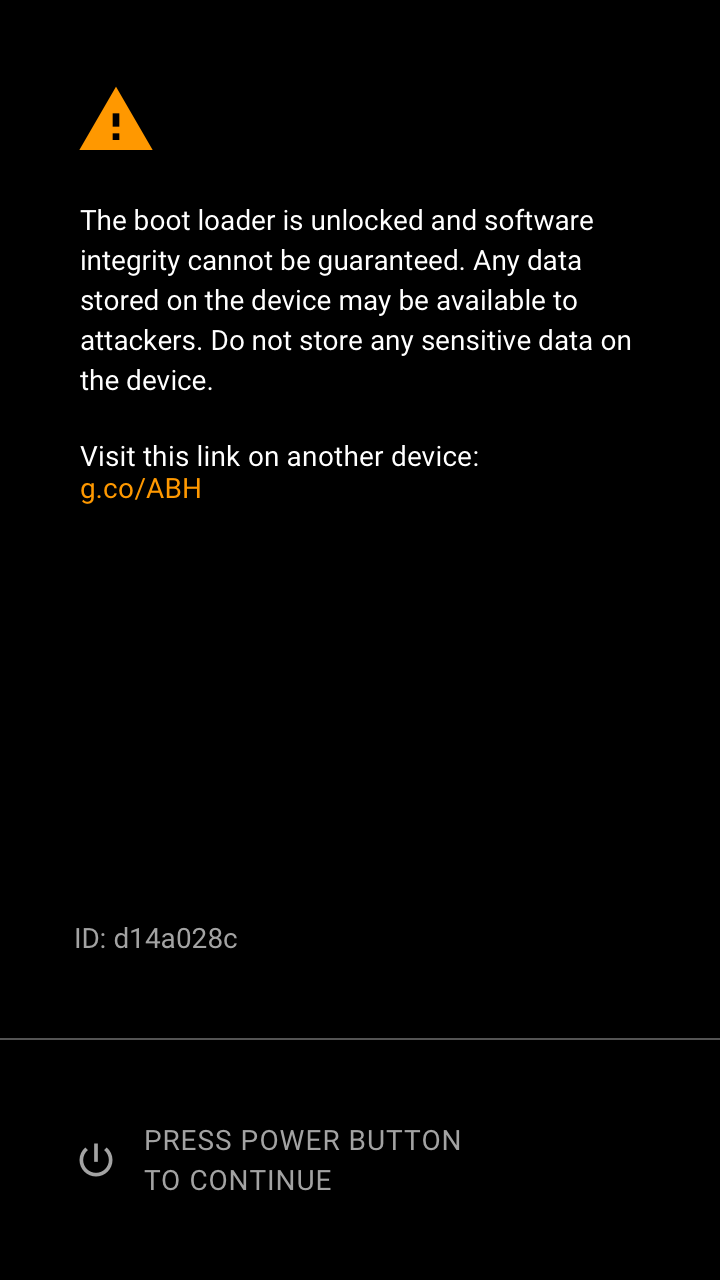
Figure 3. Example of an ORANGE screen.
dm-verity corruption
Show a RED eio screen if a valid version of Android is found and
the device is in the eio dm-verity mode. The user needs
to press the power button to continue. If the user hasn't acknowledged the
warning screen within 30 seconds, the device powers off (to protect the screen
against burn-in and save power).
Suggested text:
Your device is corrupt. It can't be trusted and may not work properly.
Visit this link on another device:
g.co/ABH
Press power button to continue.
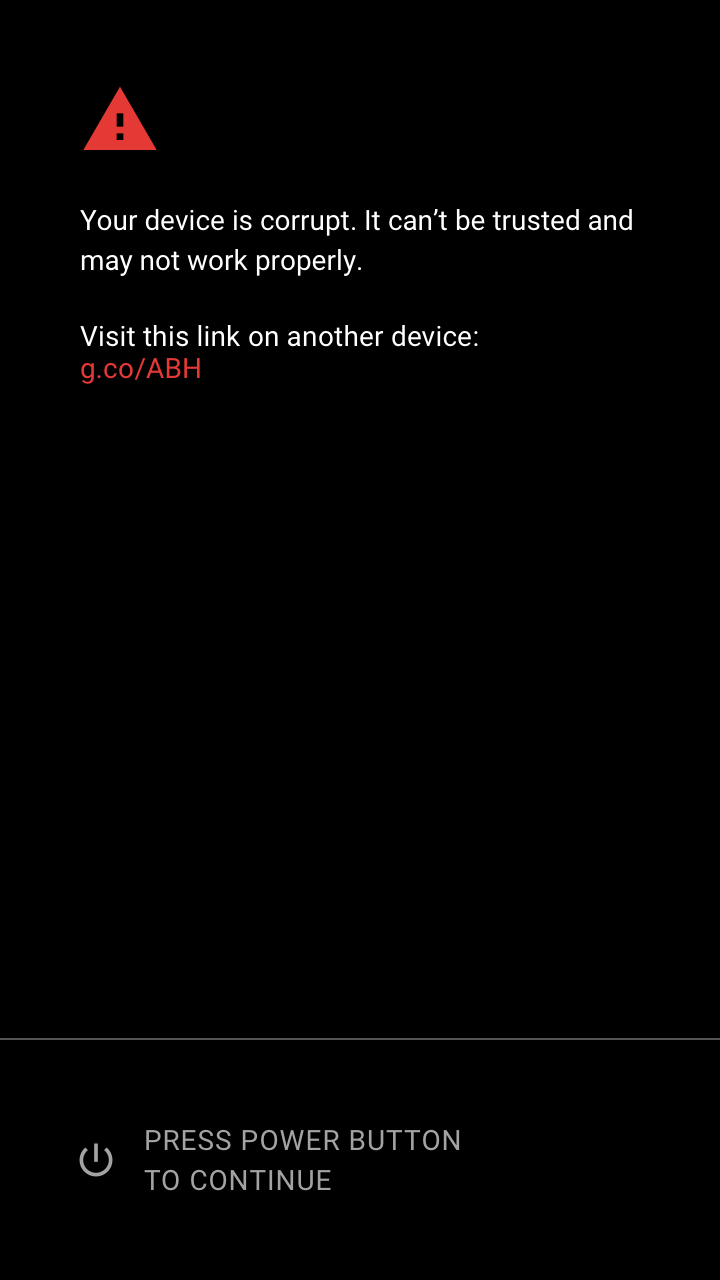
Figure 4. Example of a RED eio screen.
No valid OS found
Show a RED screen if no valid version of Android is found. The device can't continue booting. If the user hasn't acknowledged the warning screen within 30 seconds, the device powers off to protect the screen against burn-in and save power.
For the hex-number, use the first eight digits of the sha256 of
the libavb representation of the public key used for verification, for example
d14a028c.
Suggested text:
No valid operating system could be found. The device will not boot.
Visit this link on another device:
g.co/ABH
ID: hex-number
Press power button to power off.
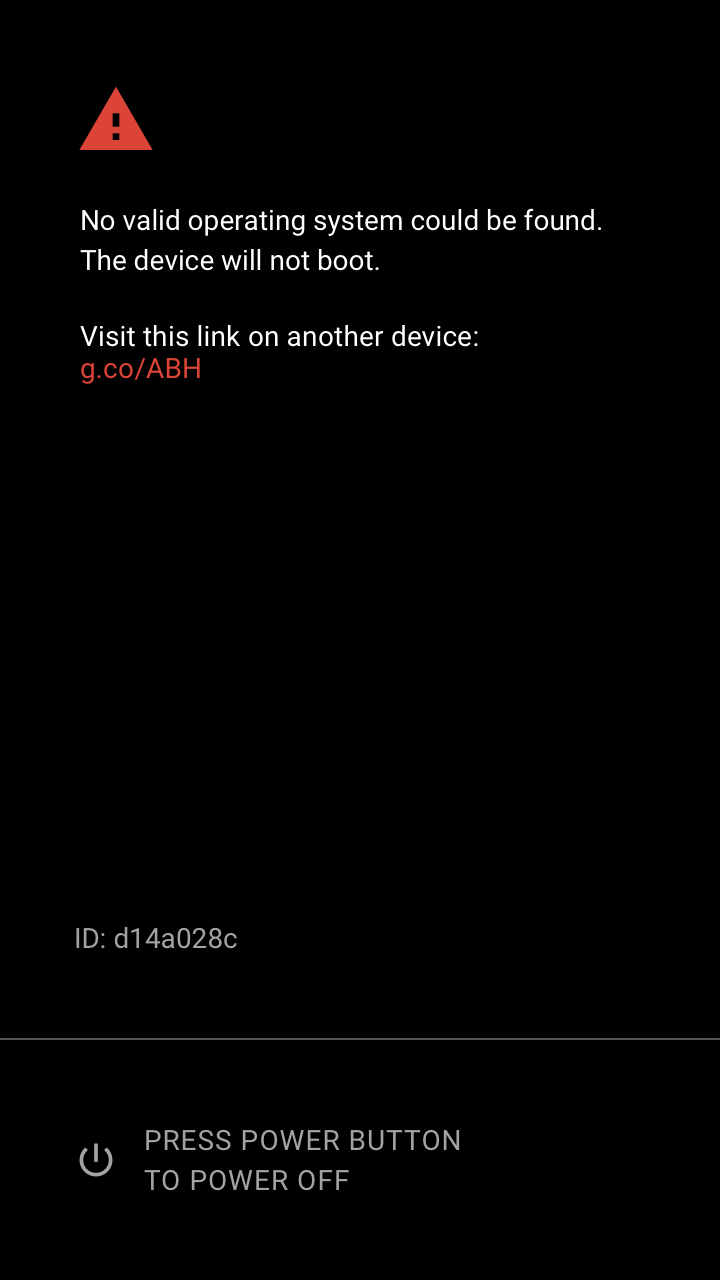
Figure 5. Example of a RED screen.
Unlock confirmation
Show an unlock confirmation screen in response to the
fastboot flashing unlock command being executed through the fastboot
interface. Focus is initially on Don't unlock. If the user hasn't
interacted with the warning screen within 30 seconds, the screen disappears and
the command fails.
Suggested text:
By unlocking the bootloader, you will be able to install custom operating system software on this phone. A custom OS is not subject to the same level of testing as the original OS, and can cause your phone and installed applications to stop working properly.
Software integrity cannot be guaranteed with a custom OS so any data stored on the phone while the bootloader is unlocked might be at risk.
To prevent unauthorized access to your personal data, unlocking the bootloader also deletes all personal data on your phone.
Press the Volume keys to select whether to unlock the bootloader, then the power button to continue.
Do not unlock the bootloader and restart phone.
Unlock the bootloader.
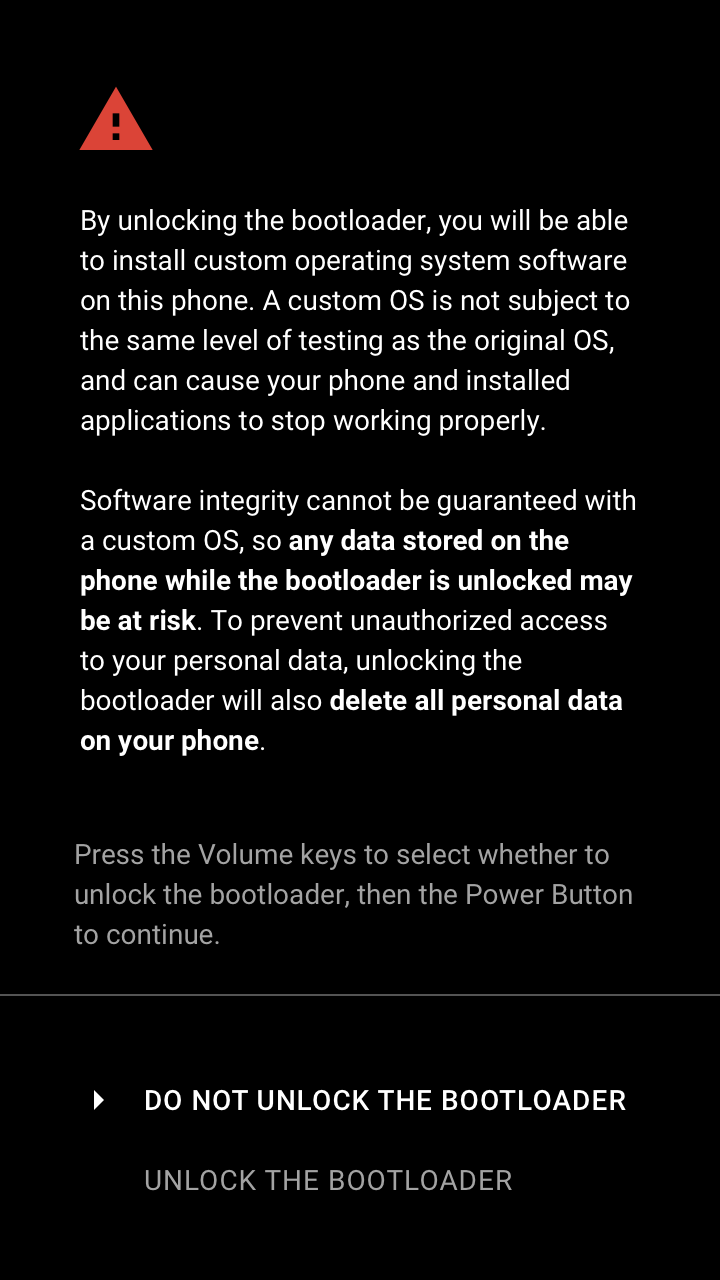
Figure 6. Example of an unlock confirmation screen.
Lock confirmation
Show a lock confirmation screen in response to the fastboot flashing
lock command being executed through the fastboot interface. Focus is
initially on Don't lock. If the user hasn't interacted with the
warning screen within 30 seconds, the screen disappears and the command fails.
Text:
If you lock the bootloader, you will not be able to install custom operating system software on this phone.
To prevent unauthorized access to your personal data, locking the bootloader will also delete all personal data on your phone.
Press the Volume keys to select whether to lock the bootloader, then the power button to continue.
Do not lock the bootloader and restart phone.
Lock the bootloader.
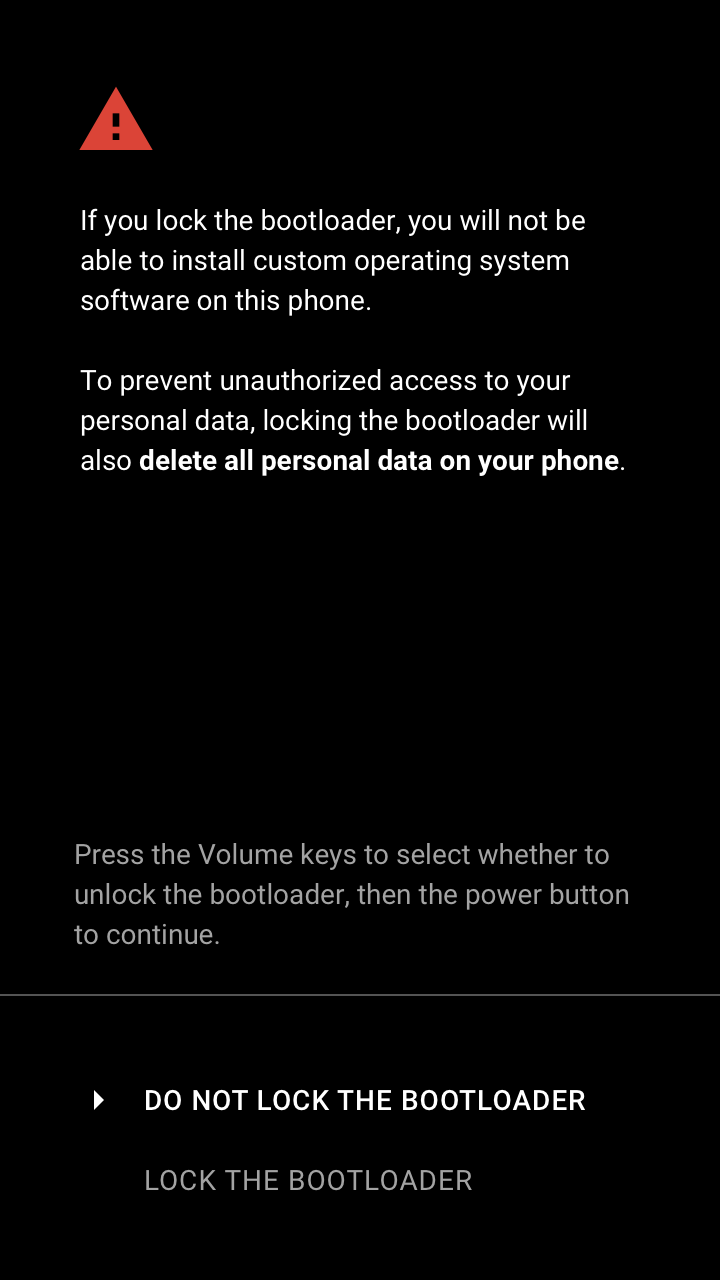
Figure 7. Lock confirmation device warning screen.
Communicate Verified Boot state to Android
The bootloader communicates Verified Boot state to Android through
kernel-command parameters, or through bootconfig in Android 12 and higher.
The bootloader sets the androidboot.verifiedbootstate option to one of the
following values:
greenif the device isLOCKEDand user-settable root of trust isn't usedyellowif the device isLOCKEDand user-settable root of trust is usedorangeif the device isUNLOCKED
The androidboot.veritymode option is set to eio or
restart depending on which state the bootloader is in with respect
to handling dm-verity errors. For more details, see Handle
verification errors.